Part of the series Kubernetes basics
Helm Explained Simply: From first install to shipping your own chart
Helm installs and manages a whole Kubernetes application as one package. Learn the problem it solves and what happens between your command and running Pods. Then build, install, upgrade, and ship a small chart step by step.
Imagine you are deploying OrderUp, an online food-ordering app. To run it on Kubernetes, it needs:
- a Deployment to run the app’s containers,
- a Service so other components can reach those containers,
- a ConfigMap for settings,
- a Secret for passwords and keys,
- an Ingress to route website requests to the Service.
You can write each of these as a separate YAML file. Helm helps you organise them, change their settings per environment, and install, upgrade, or remove them together.
We will use OrderUp throughout. Part 1 explains the ideas. Part 2 is a hands-on lab with commands you can run.
Part 1: Understand the concepts
1. The problem without Helm
Suppose OrderUp has four files:
deployment.yaml
service.yaml
configmap.yaml
ingress.yaml
You deploy them with:
kubectl apply -f .That works. Now you need three environments:
| Environment | Purpose | App copies |
|---|---|---|
| Development | Developers test changes | 1 |
| Testing | The team checks the app | 2 |
| Production | Real customers use it | 3 |
Each environment may also need a different domain, more memory, or other settings. You could copy the four files into three folders. But when the container port changes, you must now edit several copies and get every one right.
The real problem is repeated configuration and the effort of keeping the copies consistent.
Think of a restaurant order form. The form stays the same; each customer’s choices change. Helm works the same way:
The templates stay the same. The values change.
2. Helm is a package manager for Kubernetes
If you have used Ubuntu, you already know the idea. You do not download Python, unzip it, and set paths by hand. You run:
apt update
apt install python3
Helm does the same job for Kubernetes applications:
helm repo add podinfo https://stefanprodan.github.io/podinfo
helm install frontend podinfo/podinfo
With Helm you can:
- install third-party apps and cluster tools such as Prometheus, Grafana, or Argo CD,
- upgrade them to a new version or new settings,
- roll back to an earlier version when an upgrade goes wrong,
- uninstall them with one command,
- package your own app so other teams can install it the same way.
Installing Prometheus by hand is not one YAML file. It needs a namespace, service accounts, permissions, ConfigMaps, a StatefulSet, and more, in the right combination. Helm turns that into one command with versioning and customisation built in.
3. What a chart is
A chart is an application deployment package. It holds everything Helm needs to create the Kubernetes resources for an app.
webapp/
├── Chart.yaml
├── values.yaml
├── charts/
└── templates/
    ├── deployment.yaml
└── service.yaml| File or folder | What it contains | Everyday comparison |
|---|---|---|
Chart.yaml |
Package information: name, versions, description | The label on a product box |
values.yaml |
Default settings | The choices on an order form |
templates/ |
Kubernetes YAML with placeholders | The reusable form itself |
charts/ |
Other charts this one depends on, if any | Extra packages included in the box |

A chart contains deployment instructions, not your source code and not your container image. The image lives in a container registry. The chart only says which image to run:
image:
  repository: mycompany/orderup
  tag: "1.0.0"
Helm writes those values into the Deployment. Kubernetes then pulls the image from the registry.
4. Chart, release, and revision
These three words are easy to mix up.
| Term | Meaning |
|---|---|
| Chart | The reusable deployment package |
| Release | One named installation of that chart |
| Revision | One entry in a release’s history |
Install the webapp chart once:
helm install food-dev ./webapphelm installcreates a new installation.food-devis the release name../webappis where the chart is.
Install the same chart again with a different name:
helm install food-test ./webappNow you have two releases, food-dev and food-test, from one chart.
To change food-dev, upgrade it:
helm upgrade food-dev ./webappThe release keeps its name, and Helm records revision 2. Do not “upgrade” by installing under a new name such as food-dev-v2. That creates a second, separate release.
Chart = package. Release = installation. Revision = installation history.
5. What a repository is
A Helm repository is a place where packaged charts are stored and shared, like the Ubuntu archive for .deb packages.
Three kinds of storage are easy to confuse:
| Location | Stores |
|---|---|
| Source-code repository (GitHub, GitLab) | App code, chart source files, documentation |
| Container registry (Docker Hub, GHCR, ECR) | Container images |
| Helm chart repository | Packaged charts and an index listing them |
Some registries can store both images and charts using OCI support, but they are still different kinds of files.
helm repo add gives a repository a local nickname. It does not install anything. helm repo update refreshes your local copy of the repository’s chart list. It does not upgrade anything already running in the cluster.

6. How Helm finds your cluster
Helm runs on your machine, not inside the cluster. Since Helm 3 there is no server component to install (Helm 2 needed one called Tiller).
Helm reads the same kubeconfig file as kubectl and uses its current context:
| Setting | Chooses |
|---|---|
| Context | Which cluster and which user identity |
| Namespace | Which area inside that cluster |
Helm uses your identity and permissions. If kubectl is not allowed to create a Deployment, Helm is not allowed either. Always check the context before installing anything.
7. Templates, values, and rendering
A plain Deployment has fixed numbers:
spec:
  replicas: 1
A Helm template has a placeholder instead:
spec:
  replicas: {{ .Values.replicaCount }}
And values.yaml supplies the number:
replicaCount: 3Helm combines them and produces:
spec:
  replicas: 3
This step is called rendering: replacing template expressions with real values to produce normal Kubernetes YAML. Kubernetes only ever receives the finished YAML. It never sees .Values.
Two built-in objects you will use most:
| Object | Holds | Example |
|---|---|---|
.Values |
Settings from values.yaml, -f files, and --set |
{{ .Values.image.tag }} |
.Release |
Facts about this installation | {{ .Release.Name }} gives food-dev |
Using .Release.Name in resource names lets the same chart be installed many times without name clashes. food-dev-web and food-test-web can live side by side.
A value only changes something if a template uses it. Adding favoriteColor: blue to values.yaml does nothing unless a template refers to .Values.favoriteColor.
8. Chart.yaml and the three kinds of version
apiVersion: v2
name: webapp
description: A small web application chart for learning Helm
type: application
version: 0.1.0
appVersion: "1.28.0"| Field | Meaning |
|---|---|
apiVersion |
Chart format. v2 for Helm 3 and later. |
name |
Chart name |
type |
application (installs things) or library (shared helpers only) |
version |
Version of the chart package |
appVersion |
Version of the app it deploys, for information |
There are three separate version ideas:
| Version | Example | What it identifies |
|---|---|---|
| Chart version | 0.1.0 |
The deployment package |
| App or image version | 1.28.0 |
The application build |
| Release revision | 2 |
An entry in the release history |
Changing appVersion alone does not change the image that runs. A template must use it, or you must change the image value.
9. Follow one installation from start to finish
Suppose you run:
helm install demo ./webapp -n learning --create-namespace- Helm reads the chart. It loads
Chart.yaml, the templates, the default values, and any dependencies. - Helm prepares the values. It merges the chart defaults with your overrides.
- Helm renders the templates. Placeholders become real names, replica counts, and images.
- Helm sends the YAML to the API server. The API server checks your permissions and validates the resources. Helm stores a record of the release in the namespace.
- Kubernetes controllers take over. The Deployment controller creates a ReplicaSet, which creates Pods. The scheduler picks nodes, and each node’s kubelet starts the containers through the container runtime.
- The app becomes ready. When Pods pass their readiness checks, the Service sends them traffic.
Helm describes and submits the installation. Kubernetes keeps it running.
10. Install flow and traffic flow are separate
When you deploy, Helm generates resources and sends them to Kubernetes.
When a customer visits the website, the request travels through the network:
Customer → load balancer → Ingress controller → Service → app PodHelm is not in that path. It may have created the Ingress and Service, but it is not a proxy between customers and the app. If Helm is uninstalled from your laptop, the app keeps running.
Also, an Ingress resource does nothing on its own. An Ingress controller must be running in the cluster to act on its rules.
11. One chart, many environments
Keep the defaults in the chart’s values.yaml:
replicaCount: 1Put production differences in values-prod.yaml:
replicaCount: 3When the same setting comes from several places, Helm uses this priority:
| Input | Priority |
|---|---|
Chart’s values.yaml |
Lowest |
Your -f values files |
Higher; a later -f beats an earlier one |
--set on the command line |
Highest |
So -f values-prod.yaml --set replicaCount=2 gives 2 replicas.
For team work, prefer values files stored in Git over long --set commands. They are easier to review and to repeat.
During helm upgrade, do not assume your earlier overrides are carried forward. Pass the same -f files and --set flags every time, so the result is predictable.
12. Upgrades and rollbacks
An upgrade renders the chart again and applies only the differences. What Kubernetes then does depends on what changed:
| Change | What usually happens |
|---|---|
| Replica count | Pods are added or removed |
| Container image | The Deployment starts a rolling update |
| Pod environment variables | The Deployment starts a rolling update |
| Service port | The Service changes; Pods are untouched |
| ConfigMap content | The ConfigMap changes; Pods may not restart by themselves |
An upgrade does not restart every Pod. Pods that read a ConfigMap as environment variables keep the old values until they are replaced.
A rollback applies the configuration of an earlier revision and records it as a new revision. Rolling back from revision 2 to revision 1 creates revision 3.
Rollback has a limit. If the new version changed a database table or deleted data, rolling back the Deployment does not restore the database.
Helm rollback restores release configuration. It is not a backup.

13. What Helm does not solve for you
| Concern | Still needs separate work |
|---|---|
| Security | Image scanning, permissions, network rules, secret management |
| Availability | Capacity, node placement, disruption budgets |
| Data protection | Backups, restore tests, database migrations |
| App correctness | Functional and integration testing |
| Cloud prerequisites | IAM roles, networks, load balancers |
| Drift correction | If someone edits a Helm-managed resource by hand, Helm does not undo it. A GitOps tool such as Argo CD can. |
Helm is a packaging and release tool, not a whole platform.
Part 2: Commands and practice
You need kubectl and helm connected to a practice cluster, such as kind, minikube, or Rancher Desktop. The commands work with Helm 3 and Helm 4.
1. Check where Helm will install
helm version
kubectl config current-context
kubectl get nodes
If the context is wrong, switch it before going further:
kubectl config use-context <context-name>You can also choose a context or namespace for a single Helm command:
helm list --kube-context <context-name> -n <namespace>2. Install a third-party chart
Add the repository once, then refresh it:
helm repo add podinfo https://stefanprodan.github.io/podinfo
helm repo update
helm search repo podinfo
Look at the chart before installing it:
helm show chart podinfo/podinfo
helm show values podinfo/podinfo > podinfo-values.yaml
helm show values lists every setting the chart accepts. Read it before any production install.
Install it with a release name and one override:
helm install frontend podinfo/podinfo \
  -n demo --create-namespace \
  --set replicaCount=2

helm list -n demo
kubectl get pods -n demo
Remove it, using the release name, not the chart name:
helm uninstall frontend -n demo3. When the chart is not in your repositories
Many projects publish their own repository. Search Artifact Hub, the public chart catalogue, from the command line:
helm search hub argo-cdThen add the vendor’s repository from its official documentation. For example:
helm repo add argo https://argoproj.github.io/argo-helm
helm repo add eks https://aws.github.io/eks-charts
helm repo update
helm search repo argo/argo-cd
Some charts need extra values before they work. The AWS Load Balancer Controller, for example, needs clusterName and IAM permissions. Read helm show values and the vendor’s install guide first.
Bitnami was long the default place to look. In 2025 Bitnami changed how its free images are published, so check where a Bitnami chart’s images come from before you rely on it.
4. Build your own chart
helm create webapp generates a full starter chart. Its files depend on each other, so if you replace values.yaml with two settings and keep the generated templates, rendering fails. For learning, build a small chart by hand:
mkdir -p webapp/templateswebapp/Chart.yaml:
apiVersion: v2
name: webapp
description: A small web application chart for learning Helm
type: application
version: 0.1.0
appVersion: "1.28.0"webapp/values.yaml:
replicaCount: 1

image:
  repository: nginx
  tag: "1.28.0"

service:
port: 80webapp/templates/deployment.yaml:
apiVersion: apps/v1
kind: Deployment
metadata:
  name: {{ .Release.Name }}-web
  labels:
    app: {{ .Release.Name }}-web
spec:
  replicas: {{ .Values.replicaCount }}
  selector:
    matchLabels:
      app: {{ .Release.Name }}-web
  template:
    metadata:
      labels:
        app: {{ .Release.Name }}-web
    spec:
      containers:
        - name: web
          image: "{{ .Values.image.repository }}:{{ .Values.image.tag }}"
          ports:
            - containerPort: 80
          readinessProbe:
            httpGet:
              path: /
              port: 80
          resources:
            requests:
              cpu: 50m
memory: 64Miwebapp/templates/service.yaml:
apiVersion: v1
kind: Service
metadata:
  name: {{ .Release.Name }}-web
spec:
  selector:
    app: {{ .Release.Name }}-web
  ports:
    - port: {{ .Values.service.port }}
      targetPort: 80
5. Check the chart before installing
helm lint ./webapp
helm template demo ./webapp -n learning
helm lint finds common chart mistakes. helm template prints the finished YAML without installing anything:
# Source: webapp/templates/service.yaml
apiVersion: v1
kind: Service
metadata:
  name: demo-web
...
Notice {{ .Release.Name }}-web became demo-web.
| Command | Question it answers |
|---|---|
helm show values |
Which settings does the chart expose? |
helm lint |
Does the chart have common problems? |
helm template |
What YAML will these templates produce? |
A correct preview does not prove the app will run. Image pulls, permissions, storage, and capacity still matter.
6. Install and verify
helm install demo ./webapp \
  -n learning --create-namespace \
--wait --timeout 5m| Option | Purpose |
|---|---|
-n learning |
Install into the learning namespace |
--create-namespace |
Create the namespace if it does not exist |
--wait |
Wait until the resources are ready before reporting success |
--timeout 5m |
Give up waiting after five minutes |
Check Helm’s view, then Kubernetes’ view:
helm list -n learning
helm status demo -n learning
kubectl get deployments,pods,services -n learning
kubectl rollout status deployment/demo-web -n learning
Finally, test the app itself:
kubectl port-forward -n learning service/demo-web 8080:80In another terminal:
curl -I http://localhost:8080You should see HTTP/1.1 200 OK. Helm’s status, Kubernetes readiness, and a real response are three different pieces of evidence. Check all three.
7. Use the same chart for production settings
Create values-prod.yaml:
replicaCount: 3Install a production-style release from the same chart:
helm install food-prod ./webapp \
  -n production --create-namespace \
  -f values-prod.yaml
Preview how --set beats the file:
helm template food-prod ./webapp -f values-prod.yaml --set replicaCount=2 | grep replicas replicas: 28. Upgrade, check history, and roll back
helm upgrade demo ./webapp -n learning --set replicaCount=3 --wait
helm history demo -n learning
REVISION STATUS DESCRIPTION
1 superseded Install complete
2 deployed Upgrade completeThe real output also shows the update time, chart, and app version columns.
Go back to revision 1:
helm rollback demo 1 -n learning --wait
helm history demo -n learning
kubectl get pods -n learning
The history now shows revision 3, which matches revision 1’s configuration. The Deployment is back to one replica.
To install if the release is missing and upgrade if it exists, use one command. This is common in CI pipelines:
helm upgrade --install demo ./webapp -n learning --create-namespace9. Package and share your chart
Package the chart into one file:
helm package ./webapp -d distSuccessfully packaged chart and saved it to: dist/webapp-0.1.0.tgzThe .tgz holds the chart only, not the container image. You can install it directly:
helm install demo2 ./dist/webapp-0.1.0.tgz -n learningTo share it through a classic HTTP repository, create an index:
helm repo index ./dist --url https://charts.example.comThis writes dist/index.yaml, which lists every chart and where to download it. It does not upload anything. Upload the .tgz files and index.yaml to a web host such as GitHub Pages, Nexus, or Artifactory. Then anyone can run:
helm repo add orderup https://charts.example.com
helm install payments orderup/webapp
https://charts.example.com is a placeholder; use the address where you actually published the files.
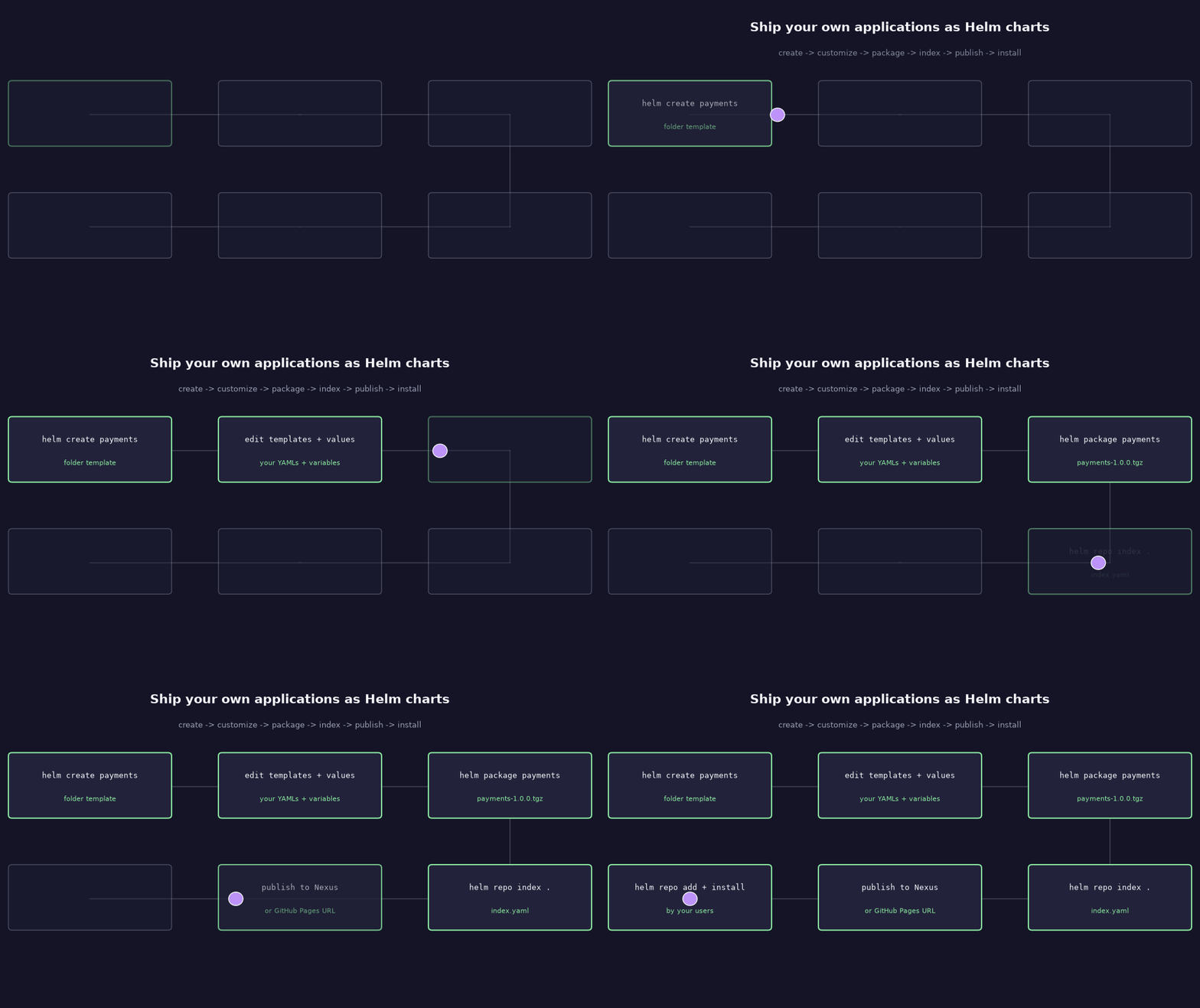
OCI registries are the other option. They skip index.yaml and use push and pull:
helm push dist/webapp-0.1.0.tgz oci://registry.example.com/charts
helm install demo oci://registry.example.com/charts/webapp --version 0.1.0
10. Troubleshoot
Work from the release down to the container:
helm status demo -n learning
helm history demo -n learning
helm get values demo -n learning --all
helm get manifest demo -n learning
kubectl get pods -n learning
kubectl describe pod <pod-name> -n learning
kubectl logs <pod-name> -n learning
helm get manifest shows exactly what Helm sent to Kubernetes. helm get values --all shows the final values after every override.
| Symptom | Where to look |
|---|---|
| Template error during install | Template syntax, indentation, missing values; run helm template |
Pending Pods |
Scheduling, resource requests, storage |
ImagePullBackOff |
Image name, tag, registry credentials |
CrashLoopBackOff |
App startup; read kubectl logs |
| Service cannot reach Pods | Selector labels, readiness, ports |
release: not found |
Release name, namespace, or context |
cannot re-use a name that is still in use |
The release exists; use helm upgrade or pick another name |
A failed install can leave resources behind. Look at what exists before you try again.
11. Clean up
helm uninstall demo -n learning
helm uninstall demo2 -n learning
helm uninstall food-prod -n production
kubectl delete namespace learning production demo
Uninstalling does not always delete everything. PersistentVolumeClaims and some custom resources can be left behind on purpose, depending on the chart.
12. Helm cheat sheet
| Goal | Command |
|---|---|
| Add a repository | helm repo add <name> <url> |
| Refresh repositories | helm repo update |
| Search added repositories | helm search repo <keyword> |
| Search Artifact Hub | helm search hub <keyword> |
| See chart settings | helm show values <repo>/<chart> |
| Preview YAML | helm template <release> <chart> |
| Check a chart | helm lint <chart-dir> |
| Install | helm install <release> <chart> -n <ns> --create-namespace |
| Override values | -f values-prod.yaml or --set key=value |
| Install or upgrade | helm upgrade --install <release> <chart> |
| List releases | helm list -A |
| Release details | helm status <release> |
| History | helm history <release> |
| Roll back | helm rollback <release> <revision> |
| Uninstall | helm uninstall <release> |
| Create a starter chart | helm create <name> |
| Package | helm package <chart-dir> |
| Build a repository index | helm repo index <dir> --url <url> |
13. Check your understanding
- Which command shows the YAML Helm will send, without installing?
- If you install the same chart twice with different names, how many releases do you have?
- Why does
helm repo updatenot change your running apps? - If
values-prod.yamlsays 3 replicas and--setsays 2, which wins? - After rolling back from revision 2 to revision 1, what is the new revision number?
- Why can rollback not undo a database change?
The roles stay small: A chart is the package. Values customise it. Templates turn values into YAML. A release is one installation, and revisions are its history. A repository shares charts. Kubernetes keeps the app running.